Style Boutique 2 (Style Savvy 3) has a new feature that allows you to decorate dollshouse rooms and display them in an area called the Caprice Chalet. There is a wide range of miniatures to collect in the game that can be used to decorate rooms. You can design a wide range of rooms at the Caprice Chalet.
Please refer to the following guides for more information on the Caprice Chalet:
Here are some examples of rooms I have designed for the Caprice Chalet. This guide will be updated with more designs in the future.
A collection of game guides for Style Boutique 2/Style Savvy 3. Covers all aspects of the game including Designer Lounge, Colour Palette, Hairstyles, Make-up sets, unlocking items, amiibo items and DLC. Please refer to the Guide Index for a list of all the guides.
Saturday, 24 September 2016
Wednesday, 14 September 2016
Boutique - Remodelling & Decorating
To redecorate your Boutique, simply click the Manage icon in the top left hand corner of the bottom 3DS screen when you are in your Boutique. The following menu will appear with these options: Music, Mannequin & Display, Remodel & Stock Management. For information on stock management, please refer to the Purchasing & Clearing Stock guide. For information on utilising mannequins, please refer to the Mannequin guide.
Music
You can set certain music to play in your Boutique and music tracks are available to match each image/style in the game. To select a music track, simply scroll through the list and you can preview each song. Select the track you would like to use and click Ok. I personally like using the Girly music track.
Mannequin & Display
At the front of your Boutique, there is a space you can display a mannequin with an outfit that customers can purchase. Please visit the Mannequin guide for a detailed guide on how to decorate and sell outfits on mannequins. You can also decorate the space the mannequin is placed in and place miniatures in the space to give it certain look.
There are a number of design options available for the space. Select the Walls/Floor option to alter the design to any of the following:
- Brick Wall
- Plain White
- Aquamarine
- Vivid Yellow
- Fern Green
- Magenta Gradient
- Bold
- Lilac Diamonds
- Sweet Shop Stripes
- Dot Wallpaper
- Pink and White
- Coloured Bubbles
- Twinkling Black
- Chessboard
- Red Curtains
There is an option to place miniatures in the space and up to two miniatures can be used at a time. Select the Display icon to bring up a menu that displays all the miniatures you have available to use. You are able to place miniatures from the following categories: clothes, lighting and clocks, electronics, miscellaneous, plants and animals, food, shop resources and furniture (selected items).
Remodel
Select the Remodel option to alter the interior and exterior appearance of your Boutique. The following menu screen appears when selecting the Remodel option.
The Interior option allows you to alter the interior appearance of your Boutique. The options available fit with the various images/styles in the game. Select an option that fits the image you wish to give your Boutique, i.e. girly, bold or chic. The following interior layouts are available and the style that they match are listed:
- Cosy Girl = Girly
- Pop Medley = Lively
- Cool Step = Bold
- Bright and Feminine = Feminine
- Baby Doll Delight = Baby-Doll
- Gothic Castle = Gothic
- Clean and Simple = Basic
- Scholastic Corner = Preppy
- Heavy Rock = Rock
- Retro Zone = Psychedelic
- Sports Centre = Sporty
- Bohemian Hideout = Boho
- Eastern Rosewood = Eastern
- Superstar Select = Chic
- Underwater Dreamscape = No set theme. Unlocked with Purple Moon brand.
The Display option allows you to place miniatures items in the layout of your boutique. You can place up to three miniatures in the space and is it ideal to use miniature clothing items that match the theme of your Boutique.
The Exterior option allows you to alter the exterior of your Boutique. The options available fit with the various images/styles in the game. Select an option that fits the image you wish to give your Boutique, i.e. girly, bold or chic. There are two design options available; walls and front. You can mix and match wall and front designs. The following exterior layouts are available:
Wall Design Options
- Girly Brick
- Toy Castle
- Blackberry Wall
- Bright Airy
- Charming Pink
- Gothic Wall
- Natural Mint
- Trendy Violet
- Rock Splash
- Retro Jump
- Technological
- Country Wall
- Eastern Wall
- Royal Suite
- Purple Reverie
Front Design Options
- Girly Front
- Toybox Front
- Blackberry Front
- Upmarket Front
- Charming Front
- Gothic Front
- Natural Front
- Trendy Front
- Rock Front
- Retro Front
- Techno Front
- Country Front
- Eastern Front
- Luxury Front
- Purple Front
Thursday, 8 September 2016
Make-Up Sets - Default Colours & Looks
Style Boutique 2 has special make-up sets that you can unlock through
collecting special items from NPC characters and giving them to Tarquin
at the Beautician. These sets can be used to create your own make-up
sets and sold at the Beautician. Each of the special sets has its own
unique colour palette and this guide will cover the default colours and
styles included in the make-up sets.
Please refer to the Make-Up Set guide on how to unlock each set and the Make-Up Lab guide on how to create make-up sets. The colours in the palettes need to be unlocked and please refer to the Colour Palette Guide on how to unlock colours.
The guide lists the make-up set and the defaults of each make-up feature. Next, the section that the colour is found is listed (i.e. pinks or blues) and the name of the colour used (i.e. City Pink or Electric Blue). The sections for mascara, blush and lipstick have extra information. Mascara lists which the thickness option, blush lists the blush option and lipstick lists whether the lipstick is matte or glossy. The picture below shows the 3 options available for those sections.
Orchid Purple
Eyebrows = Page 2 – Fine flat
Eyeshadow = Blues/Purples – Lilac
Eyeliner = Blues/Purples – Lavender
Mascara = Greyscale – Jet Black (Third thickness option)
Coloured Contacts = Purples – Exotic Grape
Blusher = Pinks – Baby Pink (First blush option)
Wide-Eyed Wonder
Eyebrows = Page 3 - Ultra Fine Arch
Eyeshadow = Pinks – Cherry Blossom
Eyeliner = Light Browns - Tiramisu
Mascara = Dark brown – Bitter Chocolate (Second thickness
option)
Coloured Contacts = Light Brown – Sawtooth Oak
Blusher = Pinks – Cherry Blossom (First blush option)
Butterfly Flight
Eyebrows = Page 4 – Fine Round
Eyeshadow = Pinks – Baby Pink
Eyeliner = Pinks – Meadow Pink
Mascara = Dark Browns – Antique Door (Second thickness
option)
Coloured Contacts = Pinks – Afternoon Rose
Blusher = Pinks – Soft Pink (Second blush option)
Lipstick = Pinks – Baby Pink (Glossy)
Make-Up Lab
There is a feature to develop your own make-up sets in Style
Boutique 2. Visit the Beautician and click the 1F icon in the top left hand
corner of the bottom 3DS screen to visit the Make-Up Lab.
There is a feature to develop your own make-up sets in Style Boutique 2. Visit the Beautician and click the 1F icon in the top left hand corner of the bottom 3DS screen to visit the Make-Up Lab.
There are three options to choose from at the Make-Up Lab: Display, Make-Up Lab and Make-Up Box.
Once you are happy with your make-up set palette, click ok and you are given the option to give your make-up set a name. Once finished, your set is available for use in game features such as your apartment and fashion shows.
Creating a make-up set from one of the sets provided by Tarquin does not erase the original set. The original make-up set is available still at the make-up lab. It’s useful to create a straight copy of the set to your make-up box right after your unlock it as make-up sets are only available for use that are saved to your make-up box. For a detailed guide on all the original colours and styles in the original make-up sets, please refer to this guide.
If you have collected
a make-up set item from an NPC, Tarquin will ask to see the item soon as you
enter the Make-up Lab. Give him the item and he will present you with a special
make-up set based off the item. For a list of all the make-up sets and how to
unlock them, please visit the Make-Up Set Guide.
There is a feature to develop your own make-up sets in Style Boutique 2. Visit the Beautician and click the 1F icon in the top left hand corner of the bottom 3DS screen to visit the Make-Up Lab.
There are three options to choose from at the Make-Up Lab: Display, Make-Up Lab and Make-Up Box.
Display
You are able to display three make-up sets for sale on the
ground floor of the Beautician. Customers will ask to purchase these sets, even
male customers. Male customers will comment that are buying it for someone or
there is a few characters that are buying it for their collection. Female
customers will ask to try it on. Try displaying three make-up sets that vary in
colour and looks.
This is the option that allows you to create your own
make-up set. First you select one of the make-up sets provided by Tarquin and
the appearance of the set your choose will be the appearance of the set you
create, i.e. if you pick the Fairy Apple set, your set will have the same
appearance as that one with the giant apple and mirror.
Next, you can select all the colours of your make-up set palette. You can choose customise the following options: Eyebrows, Eyeshadow, Eyeliner, Mascara, Coloured Contacts, Blush and Lipstick. You can also choose a certain style of mascara thickness/look, position of blush and matte or glossy lipstick.
Once you are happy with your make-up set palette, click ok and you are given the option to give your make-up set a name. Once finished, your set is available for use in game features such as your apartment and fashion shows.
Creating a make-up set from one of the sets provided by Tarquin does not erase the original set. The original make-up set is available still at the make-up lab. It’s useful to create a straight copy of the set to your make-up box right after your unlock it as make-up sets are only available for use that are saved to your make-up box. For a detailed guide on all the original colours and styles in the original make-up sets, please refer to this guide.
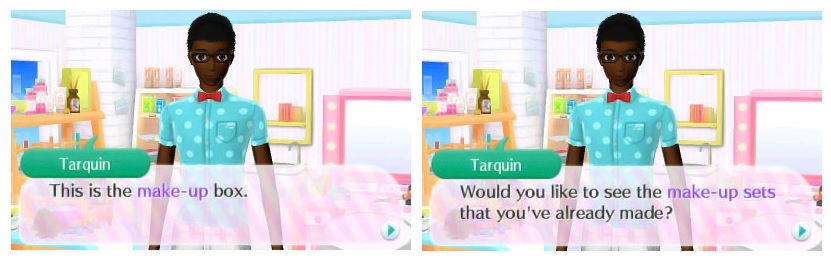
Make-Up Box
Tuesday, 6 September 2016
Purchasing & Clearing Stock
One of the hardest things in Style Boutique is trying to figure out what types of clothing to keep in stock and having the right things in stock so that you don't disappoint customers. Then the other part is how do you clear out stock to make room for new items. This guide will cover how to clear stock and tips on stock management.
Clearing Stock
To clear stock from your Boutique inventory, you need to select the Manage icon at your Boutique or the Stock Management icon on the fourth floor of the Exhibition Hall. To sell an item and clear it from your inventory, select the item then click the green cart button at the bottom of the screen. This will add the item to your cart to sell. Now there is no option to clear every single item you have in your stock inventory unfortunately at once. To clear stock, you need to individually select each item. Frustrating I know but the clear all stock features isn't included in this installment.
Once you have added all the items you wish to get rid of to your cart, click the blue start cart and you will be brought to a screen that allows you to select the quantity of the items you wish to clear. Press the up and down arrows at the top part of the screen to increase the quantity of each item you want to clear. For example, the picture below shows the different quantities of each item in red. You will receive money back for all the items you clear. You do not receive back the amount you payed for the item and the payment is quite small.
Purchasing Stock
New stock can be purchased from the Exhibition Hall and you can purchase items from all the clothing brands available. Now the tricky part is knowing what items to keep in stock and what styles to focus on. Here's some tips on managing your stock inventory:
- At the end of each season, clear out your inventory. At the end of winter, clear out long or warm items as customers are less likely to purchase these in the warmer months.
- Stock quantities of staple items such as earrings and necklaces. These are an easy sell and they never go out of fashion.
- Focus on purchasing items from the style that matches the current look of your Boutique. If your Boutique has a girly look, customers will be looking for girly items or if you have a Baby-Doll look to your Boutique, customers will want Baby-Doll items.
- After completing a fashion show, stock up on items based on the fashion show theme (i.e. lively, bold, girly) as customers will race to your Boutique requesting outfits based on the theme and you will run out of stock quickly.
- Always keep at least one item in all clothing types (i.e. shirt, pants, skirt) of all clothing styles in case a customer drops by. For example, a customer has come in looking for a sporty outfit and luckily I have a few pieces in stock. I've been caught out a few times not having basic dresses or rock dresses in stock for customers.
- Don't stock up on too many Purple Moon items as customers hardly ever purchase these. I prefer to purchase a few items at a time and try to sell them on my mannequin.
- Make sure to buy items that will create a complete outfit. There's been plenty of times I've brought heaps of items but none of them match, especially when it comes to shoes.
- If you are purchasing Baby-Doll or Gothic themed items, make sure you purchase all items that make an the complete outfit. Some of the Marble Lily dresses have matching socks and bags.
- Winter is a great time for being able to layer clothes. So make good use of purchasing items such as jackets, socks and leg warmers.
- Clear out your stock inventory regularly. There will be items that you just cannot seem to sell and these should be gone ASAP because they're taking up valuable space for lovely new items you can buy.
- Don't forget about stocking up on bags! Customers love these and they're an easy thing to add to an outfit to increase the price.
- Take note of when staple or popular items sell out and head straight to the Exhibition Hall to stock up on more. These include earrings, shoes, hats and bags.
Sunday, 4 September 2016
Boutique - Mannequins
In Style Boutique, you are able to set up and dress a mannequin at the front of your boutique to advertise outfits to potential customers. You can choose any outfit to dress the mannequin and you can customise the appearance of the mannequin.
When you are in your Boutique, click the manage icon and then the Mannequin & Display icon. A menu will appear on the bottom screen with the following options: Outfit, Hairstyle, Colour and Pose. Now we'll cover what you can do in each option. You can also change the appearance of the area the mannequin is placed in through the Display options (please refer to this guide on decorating the mannequin space). This same process is used to dress mannequins in Caprice Chalet rooms.
Outfit
This is the most important one as this is where you will choose an outfit for the mannequin to wear. Now you can't just throw any outfit on the mannequin, it needs to match the current style your Boutique is focusing on. If you Boutique focuses on girly style, choose a girly themed outfit or if your Boutique is focused on bold style, chose a bold outfit. Also if you are currently selling outfits based on a certain style from your latest fashion show, dress the mannequin in that style (i.e. lively). Dressing a mannequin is simple, you just choose an outfit like you would if you were serving a customer. Here's some helpful tips for dressing mannequins:
Pose
There are five pose options available for the mannequin. Simply click on the pose to change the mannequin. If you have dressed your mannequin in a Yukata, there are some special poses available.
Colour
There is an option to change the colour of the mannequin. You can select a variety of colours including skin tones to bright blue and green.
Hairstyle
You can select a hairstyle for the mannequin based off the hairstyles available in your portfolio. Your hairstyle portfolio contains six pages of the latest hairstyles you have given customers or received yourself at the Hair Salon.
To sell an outfit on a mannequin, make sure you are in your Boutique and sometimes an NPC will appear on the window side of your Boutique. They will be the colour pink like all other NPC characters wishing to purchase clothes, they are just in a different position because they are looking at the outside of the Boutique. Click on the NPC and some options will appear. The top option allows you to try and sell the outfit to the NPC. Now not all customers will purchase the outfit as it does not match their style. If an customer is looking at the mannequin dressed in a girly outfit but the customer is dressed in a sporty outfit, they will comment how the mannequin is not their style and will not purchase it. If you select the top option, the customer will either comment that they wish to try it on or they don't like it. The second option is the one to pick if you can judge the customer is not interested based on their outfit and allows you to say how nice their outfit it.
When a customer wishes to purchase the outfit, they will request to try it on. If they like it, they will purchase and thank you. It's pretty easy to judge customers tastes once you memorise all the styles and clothes in the game. Customers who like similar styles to the one on the mannequin may purchase it, so try your luck if you think they will like it.
You can only sell items on the mannequin that you have in stock. If you sell out of an item to a customer that is currently on display on the mannequin, a screen will pop up asking you if you want to choose a new outfit for the mannequin. Then you basically repeat this whole process of choosing an outfit and selling it.
When you are in your Boutique, click the manage icon and then the Mannequin & Display icon. A menu will appear on the bottom screen with the following options: Outfit, Hairstyle, Colour and Pose. Now we'll cover what you can do in each option. You can also change the appearance of the area the mannequin is placed in through the Display options (please refer to this guide on decorating the mannequin space). This same process is used to dress mannequins in Caprice Chalet rooms.
Outfit
This is the most important one as this is where you will choose an outfit for the mannequin to wear. Now you can't just throw any outfit on the mannequin, it needs to match the current style your Boutique is focusing on. If you Boutique focuses on girly style, choose a girly themed outfit or if your Boutique is focused on bold style, chose a bold outfit. Also if you are currently selling outfits based on a certain style from your latest fashion show, dress the mannequin in that style (i.e. lively). Dressing a mannequin is simple, you just choose an outfit like you would if you were serving a customer. Here's some helpful tips for dressing mannequins:
- Dress the mannequin according to the current season. No customer is going to buy a wooly coat in the middle of summer and they will comment if the outfit is too hot or too cold for the current season.
- Don't mix and match too many styles. Customers will comment on how the outfit is all over the place.
- Try placing pieces you want to get rid off on the mannequin. I like to place a Purple Moon t-shirt with lively designs because no one ever requests to buy those.
- There's no price limit to the outfit. Customers will buy the outfit no matter what the price is if it meets their style.
- If customers are after Chic style outfits, you can make some quick money by placing the most expensive items you have on the mannequin.
- regularly update the outfit on your mannequin. Customers want to see something new and will not purchase an outfit if it has been on the mannequin for a long time.
Pose
There are five pose options available for the mannequin. Simply click on the pose to change the mannequin. If you have dressed your mannequin in a Yukata, there are some special poses available.
Colour
There is an option to change the colour of the mannequin. You can select a variety of colours including skin tones to bright blue and green.
Hairstyle
You can select a hairstyle for the mannequin based off the hairstyles available in your portfolio. Your hairstyle portfolio contains six pages of the latest hairstyles you have given customers or received yourself at the Hair Salon.
To sell an outfit on a mannequin, make sure you are in your Boutique and sometimes an NPC will appear on the window side of your Boutique. They will be the colour pink like all other NPC characters wishing to purchase clothes, they are just in a different position because they are looking at the outside of the Boutique. Click on the NPC and some options will appear. The top option allows you to try and sell the outfit to the NPC. Now not all customers will purchase the outfit as it does not match their style. If an customer is looking at the mannequin dressed in a girly outfit but the customer is dressed in a sporty outfit, they will comment how the mannequin is not their style and will not purchase it. If you select the top option, the customer will either comment that they wish to try it on or they don't like it. The second option is the one to pick if you can judge the customer is not interested based on their outfit and allows you to say how nice their outfit it.
When a customer wishes to purchase the outfit, they will request to try it on. If they like it, they will purchase and thank you. It's pretty easy to judge customers tastes once you memorise all the styles and clothes in the game. Customers who like similar styles to the one on the mannequin may purchase it, so try your luck if you think they will like it.
You can only sell items on the mannequin that you have in stock. If you sell out of an item to a customer that is currently on display on the mannequin, a screen will pop up asking you if you want to choose a new outfit for the mannequin. Then you basically repeat this whole process of choosing an outfit and selling it.
Subscribe to:
Posts (Atom)